

Arrow Tool In Affinity Designer
 Arrow Tool
The Arrow Tool makes it easy to quickly add arrows to your design.
Customization
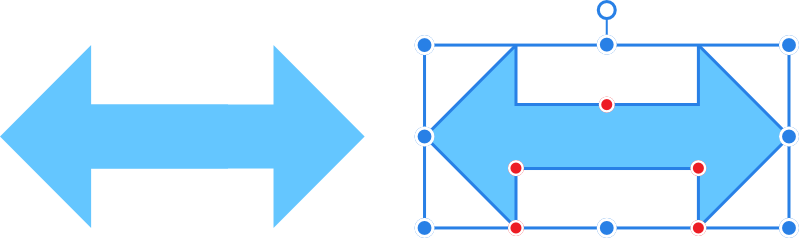
The arrow has several options on the shape and on the context toolbar to enable the body thickness and the shape and size of the arrow head to be controlled.

Fixed head proportions option
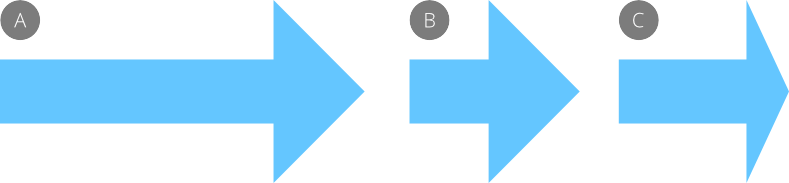
When Proportional is selected, if the shape is resized horizontally, the arrow head retains its proportions and the body shrinks or stretches.
Settings
The following settings can be adjusted from the context toolbar:
- Fill—click the color swatch to display a pop-up panel to update fill color.
- Stroke—click the color swatch to display a pop-up panel to update stroke color.
- Stroke properties—set the stroke style, width, joins, cap ends, order and arrowhead settings via a pop-up panel.
- Style—click to display a pop-up panel displaying additional style settings.
- Thickness—controls the height of the arrow body.
- Ends—sets the 'head' style on either end of the arrow.
- Proportional—For Left or Right ends, when checked (default), the head proportions remain fixed when the arrow is resized. If this option is off, the head resizes with the design.
-
 Enable Transform Origin—displays a movable transform origin about which the shape can be rotated.
 -
 Hide Selection while Dragging—when selected, the object's selection box is temporarily hidden when transforming the object. If this option is off, the selection box remains visible during transformation. The selected behavior persists across all objects unless it is manually switched.
 -
 Show Alignment Handles—when selected, displays alignment handles at the center and edges of the selected object. Hovering over these handles displays a floating guideline across the page. You can drag the handles to position the center or edges of the selected object in line with this guide.
 -
 Transform Objects Separately—when selected, where multiple objects are selected, they can be be resized, rotated and sheared independently of each other instead of transforming the bounding box.
 -
 Cycle Selection Box—after reshaping, rotating, or shearing the object, this option toggles the selection box between a Base box (honors the transform), Regular bounds (ignores transform) or Planar bounds (fitting to an isometric grid if active).
 -
 Convert to Curves—converts the selected object into a series of connected lines and nodes.
 - Select new object—when enabled (default), the new shape layer will be selected on creation.
Context toolbar options update depending on the Ends style selected (see above). Settings may include the following:
- Length—controls the length of the arrow head/tail.
- A control for the depth and shape of the end style.
- Size—controls the horizontal width of the arrow tail. (When Proportional is set, 100% represents a perfect circle, square or diamond.)
SEE ALSO:
- About geometric shapes
- Draw and edit shapes
Arrow Tool In Affinity Designer
Source: https://affinity.help/designer/en-US.lproj/pages/Tools/tools_arrow.html
Posted by: machadodazint78.blogspot.com
0 Response to "Arrow Tool In Affinity Designer"
Post a Comment